Latest Updates

Showing posts with label Windows. Show all posts

Free Download Autocad Book in Bangla-Bangla Autocad Book

8:08 PM
•
Autocad developed by Autodesk is a popular application which helps us to make 2D and 3D as well as drafting. Autocad is a so popular software in the purpose of this. This book may help you to learn something about Autocad which is absolutely free to download.
By this Bangla book i.e. Bangla computer book of Autocad, You can learn something about Autocad 2000. The Bangla Autocad book presented here is not such a big that you can learn everything about Autocad. But this Book can provide something which is basic and necessary too. Our all efforts to help you the most. So, If we can manage something greater Bangla Autocad Book than this Autocad book, Don't doubt, We'll try to present you that! Now use this for your purpose.


To get this Bangla AutoCAD book, Kindly Click Here!

Download Bangla Computer Book- Windows 7 Setup Bangla Guide

Download Bangla Computer Book from Bangla books pdf named Windows 7 Setup Bangla Guide. This Bangla computer operating system i.e. Bangla Windows 7 set up guide comprehensively has presented how to set up windows Seven.
To set up windows seven in your computer don't forget to read the whole ebook attentively first. Then set up your computer. Because once you start your computer set up processing, You may not found this Bangla computer book to read if you have one computer book until your set up being completed. So, read first attentively, then act.

However, Download Bangla Computer Book- Windows 7 Setup Bangla Guide and learn how to set up windows seven.

Book Name: Windows Seven Set up Guide Editor: Khaled Mahmud Khan Book Types: Bangla Computer Book
For Bangla computer books free download named
windows seven set up guide, Simply CliCk HerE!  

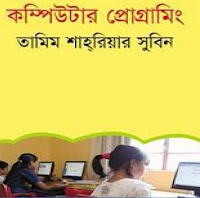
Free Download Bangla Computer Programming Ebook-Esho Programming Shikhi

8:02 PM
•
There are very few Bangla computer programming books to learn computer programming around the web. Here is one which may help you to learn and understand computer programming in Bangla Language.

This book is basically designed for the beginning students. That's why it might be easy to understand easily. Because the writing style is very attractive and easy-understood.

Book Name: Computer Programming Writer: Tamim Shariar Shubin  Number of Pages on this Bangla Book: 117 Size of this pdf File: 15.1MB

To get Bangla Programming book named  Esho Programming Shikhi, Click Here!

Bangla Computer Book Free Download-Microsoft Office 2007

7:59 PM
•
Microsoft Word of Microsoft office or MS office is known as very famous and comfortable word processing software from Microsoft. Almost every computer user and who are going to interact with PC, are known well about this i.e. MS word. If you know about MS word but you can't work with this, you can download this Bangla MS word book and learn MS word in Bangla.

The first condition of this Bangla Computer book named Bangla MS word is you don't need to spend your money to learn Microsoft word at any coaching center or any individual. Because, The writer has written this book considering this matter well. That's why This Bangla MS book 2007 can be considered as self-learning materials or resource to learn Microsoft word in Bangla Language. The size of this book is 20.MB and Page-202.

Book Name: Microsoft Word-2007
Writer: Mainul Hoque Hira

For "Bangla Computer book download" named Microsoft Office 2007
by Mainul Hoque Hira, Simply Click Here.

Avro Bangla Typing Software Free Download

7:55 PM
•
Avro Keyboard or Avro Bangla is a Bangla writing software by help of which you can see Bangla font on a web page, write in Bangla. Avro is Unicode and ANSI supported software for Bangla writing which is free to download and use.
If you can type English speedy, you can write Bangla too. Because Avro Bangla Keyboard gives phonetic system to write Bangla by its. Unlike Bijoy, you don't need to skill to Bangla typing. If you can English typing, you can Bangla too!

This Bangla software or Bangla word software(Bangla word typing software) is an easy and very convenient software to type in Bangla. Nevertheless, if you have good performance on English typing, after practicing some moments on this Bangla keyboard or Bangla word software, you may have the sharpen speed in Bangla typing too.

So, download the Bangla software named Avro Bangla typing keyboard or Avro Bangla software and enjoy the speed of your Bangla word typing. And utilize it for your own purposes.

For Avro Bangla Typing Software Free Download, Simply Click Here.

Intel P35/G33/G31 Pentium Dual-Core CPU E5300 @ 2.60GHz Driver Collection

12:03 AM
•


Download Link :- [here]

Gadmei TV Home Media 3 Driver

12:02 AM
•


Download Link :- [here]

WINDOWS 7 THEMES Collection


Download Link :- [here]

WINDOWS 7 SIDEBAR GADGETS

11:47 PM
•


Download Link :- [here]

Windows 8.1 pro activator


Download Link :- [here]

How To Make USB Bootable Pendrive For Windows 7, 8 And 8.1

10:42 AM
•
whenever we install Windows on our Desktop or laptop we use bootable disk to install. Windows installation with CD or DVD is an old metho3ds. Even our bootable disk get corrupt after few installations. After increasing the usage of Pendrive we use them for data transfer from one device to another just because it is erasable. So that's why many software are also available for converting usb into bootable usb. Installing windows by using usb is best technique. We can erase it whenever we want, its more reliable and faster than disk drives. Today i will explain you how we can use usb pen drive for installing Windows on our devices. Their are many available software which make usb into bootable but sometimes their is problem with file compatibility or even problem with different windows versions. Making windows installation is necessary after some conditions if your device is getting slow and you think that is windows problem but its not be every times. I recently explains some Tips to Make Your PC/Laptop Run Faster without doing new windows. But if you want to install new windows then follow below given methods.

Must Check:- Increase Ram With usb Pendrive

1st Method:- Bootable Windows With Win To Flash


  • WinToFlash is best tool for making bootable usb just because it support various file types of windows.


  • First of download and install WinToFlash

  • Then select your windows files source and usb device to make it bootable

  • Don't forget to check the box of use diff format files as i have done in below capture.

    2nd Method:- Bootable Windows with MS Software


  •  Microsoft officially provide tool for making bootable usb or DVD.

  • First of all you need to download  Windows Bootable Tool

  • After downloading install it on your device.

  • Now you need ISO file of windows setup for making bootable usb. If your have windows file with 

  • ISO then its good otherwise search at Google for tools for converting Windows into ISO.

  • After doing all this open Windows Usb creator tool and then select the ISO file and click on next 
           button.
  • By using this tool you can make bootable usb or DVD drive for bootable usb click on the option of 
          usb device.
  • Then further select your usb drive from the list and click on Begin copying. 
It take few min to make your device bootable in case if it not able to complete then follow below given 

process to make your usb compatible.

Unable To Make Bootable Usb

In some conditions usb drive is shown error while copying bootable files. So if you are facing same problem then you have to clean your usb with diskpart commands.
  • First of all go to start menu then search for Run or open by using Windows Key+R

  • Then type diskpart into run box and press enter

  • Now black screen will appear type command in same format as given below.
list disk

select disk X

clean
  • Replace X  with your device number from available disk no of your usb drive

  • Above command with clean your select usb disk

  • Now You have create a fresh partition of drive simply follow below commands.
create primary partition

select partition 1

active

format quick fs=fat32

assign

exit


This process will fixed out all the errors and after following all this process you will be able to make 
bootable usb with windows usb Tools.


-:Some Important Tips:-


  • To make Bootable Usb drive you must have usb of minimum space 4GB on my recommendation use 
          8GB.
 

  • Windows Files For making bootable device.

  • Make sure that Your usb drive is empty always copy all the available data before making bootable.
I hope you enjoy this tutorial and find it helpful for making bootable usb successfully. In case you face any kind of problem while using this must leave your comments. 

8 Ways To Make PC/Laptop Run Faster

10:40 AM
•
Whenever your devices become not responding or got hanged without any reason or your pc take too much time to start and all such things which make your experience with your pc or laptop bad. I can understand its really too much irritating but some of devices perform too much slowly according to their hardware configuration its that all depends upon us. How we take care of our PC and Laptop.Today I will discuss some important factors and technique which make your pc experience faster. It doesn't mean that just by using these steps your Dual core processor will work like i3. Its not possible but if your Pc or laptop experience less than from its actual performance which it is able to perform. Now just by follow below given 8 methods your device become lighter and increase your PC overall performance.

1. Uninstall Unwanted Programs

You may think that what is the roll of your current installed programs with the speed of your computer. If you think that your installed software and other things don't effect your speed and performance then the time is comes to change your thinking. Some installed software runs at back end which and use some amount of Ram, cpu memory and also catch without your knowledge and if your device and many software like that then small-small usage of all software collectively make large amount space you can also check them in Task Manager performance. So uninstalled them from your device with Program and files features available in control panel.

2. Disk Defragmentation

Fragmentation are those sectors of your hard drive or other storage device which become unallocated or hide from usage just because of some storage files and size. Whenever we store some files of large amount in any drive and after deletion some amount of memory not become available for usage. So it we use Deframentation tools to recover them. So if you want to use this tool then.

  • Open "My Computer" >> Right click on any drive >> Properties >> Tools >> Then choose Defragment now.

    3. Install Anti-virus:-

    Antivirus also play important roll in speed of your Pc or laptop. Anti-virus protect our devices from many unwanted files and harmful viruses. Whenever we download, install or copy anything from  usb or Cd's there are more changes of getting infection within your device so to protect device its necessary to choose single and complete Anti-virus which provide best protection shield. So if you don't have currently any best anti-virus and you want to download then check list all the best rated antiviruses.

    4. Error-checking:-

    Another inbuilt window tool for checking and fixing bad sectors with error in drives. This feature scan and fixed all error from depth which occurs within hard drive space. So by checking and fixing them your overall drives performance will become much better. It fixed all the unwanted which lead to loss memory and free all the storage space from unwanted error.

    5. Disk Cleanup and Remove Temporary Files:-

    This is another inbuilt windows Tool like Deframentation. which remove all unwanted and unnecessary temporary hidden files which are not in use. It also delete recycle bin  files automatically. So to use this feature follow these steps.

    • Start >> My Computer >> Right click on any Local drive >> General  >> Disk cleanup.

    • Now remove all the files if listed so or otherwise close it. Follow same method for all drives.
    Remove Temporary Files:- To remove all temporary files


    • Go To "Start" Button >> Then type in search for "Run" >> In run box type.

    • "%temp%" and press enter and new window will appears now select all files and delete them.

    • Then type "temp" in run box and press enter and remove all files delete them now all temporary files are deleted.

    6. Increase Ram:-

    You may thing why we add this method in this post. If you think that we are going to say you to buy new or upgraded your current Ram then don't worry. we will only discuss those factors and methods which are helpful and useful without any cost. Ram play important role and computer performance and its speed. So recently we published an article related to increasing Ram with USB so that's why we also add that method in this post. Its also help to increase your device Ram with usb for temporary bases. I discuss two different ways must check and also try

    7. Stop Unwanted Programs:-

    Whenever you start or restart your device many software run immediately and their interface take some memory which leads to slow down your device. So any unwanted software which you never use regularly. So its better to stop them manually to disable them just follow these steps


    • Click on Start button >> Then search for "Run" >> Then type "msconfig"

    • Then in system configuration window will appear and then go to "Startup" tab

    • Now uncheck all the software application which you don't need or want to run every time when you start your device this will reduce load and make performance much better.

    8. Check Latest Updates:-

    Last but not least for each and every device should be up to date. Always use latest versions of software's, drivers and other applications just because there are too many bugs which are fixed by developers. So always install suitable and best drivers and software's according to your device.
    I feel you find helpful these few tips to make your PC or laptop for better performance. Just try all and also share your ideas if you have any better way.

Increase Ram With USB PenDrive In Windows XP, 7 And 8 / How To Use Pendrive As Windows Ram

10:10 AM
•
RAM is random access memory the main memory of our device which execute each and every process perform. More our device ram more the speed of run time means Ram is only memory which took load of all the processes occur just like we run any application, music file, game all these things are run in temporary memory. RAM if you run number things at same time then you may face not responding problem just because RAM , Paging and cache memory is lesser that your current apps requirements. But not any easy part to upgrade your ram its also costly.
Don't worry here is concept if Virtual memory means You can increase your RAM just by using any device as virtual Ram. This virtual not have same performance as compare to your actual device ram but this concept increase Paging memory and some other functioning which means your overall performance become good and Some application also easily smart running without any not responding issue.


Method To Make Flash/Pen Drive Virtual Ram


Method 1st:- Virtual Ram Concept For Window XP, 7 and 8


  • First of all Insert Your Pen Drive
 
  • Then open "My computer" and Right click >> Then open "Properties".
 
  • Now Properties window will appear, then click on "Advanced system settings" from left side.
    • Then in "Advanced" Tab click on "Settings" Button appear in "Performance tab".
     
    • Again new window will appear then click on "Advanced" Tab.
     
    • In Advanced Tab there is an option of  "Virtual Memory box", Then click on "Change Button".


    Process of Increasing Virtual Ram
     
    • After click Change Button "Virtual settings" will appear.
     
    • Now unchecked the box of  "Automatically Manage Page size feature"
     
    • Then in Custom  size Add Your Pen Drive current same in below format.

    Note:- If Your Pen Drive is of Size 4Gb then always add 10Mb less from current available size. As i am using pen drive of size 4Gb and current space available is 3700 Mb then use 3690 minimum approx or remove more as you can because it better of device safety.
  • Now Add same "Value" in both boxes and click on Apply button.
 
  • Restart Your PC or Laptop and Now pen drive work as "Virtual Ram".
Important:- If you face problem in above method then can also follow below method which is easy to perform and work on Window 7, 8

-:Important Recommendations:-

  • Always Safely Eject Your Pen Drive. Direct remove removal may leads to device damage.
  • In Virtual Memory method If you want to convert back your Pen into Normal Then Again open Virtual Settings And Remove custom memory value and choose Default settings by checking "Automatically Manage Paging Size"
  • In ReadyBoost method don't forget to revert back to normal or otherwise open your pen drive and delete Readyboost file from your pen drive.
I Hope You enjoy Virtual Ram method and find them helpful and knowledgeable. If you know any better method for Increasing ram must share your ideas in below comments.
 
Copyright © AllThingYouNeed | Android Rom | Most popular source for Android news and reviews. Designed by OddThemes | Distributed By Gooyaabi Templates